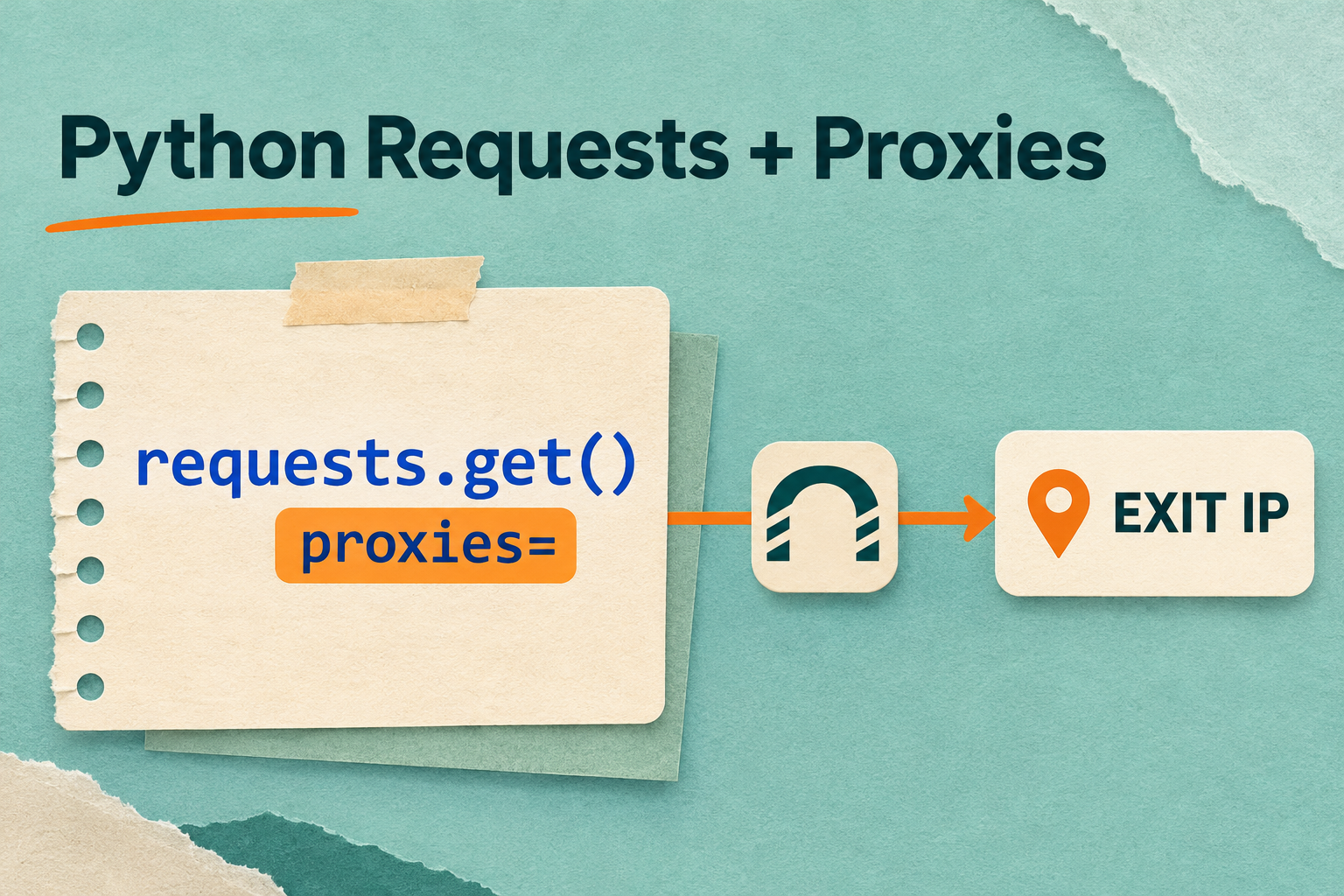
Playwright can route browser traffic through an HTTP(S) or SOCKS5 proxy. The practical questions are where to set that route, where proxy credentials belong, and whether the browser actually uses the expected exit. This guide gives a runnable Node.js example, explains browser-wide versus per-context settings, and shows how to validate an authorized target without confusing browser emulation with network location.
Examples below use an HTTP proxy with username/password authentication. Use the host, port and credential format from your own plan. The code does not contain real account secrets, and it does not claim that a proxy automatically grants access to every website.
Choose the right scope before writing code
| Scope | Where to set it | When it fits |
|---|---|---|
| Browser-wide | chromium.launch({ proxy: { ... } }) | Every context in a simple browser run uses one proxy configuration. |
| Per context | browser.newContext({ proxy: { ... } }) | Separate tests or sessions need different proxy credentials or routes. |
| Playwright Test | use: { proxy: { ... } } in playwright.config.ts | A test suite should share one default proxy; projects or tests can override it. |
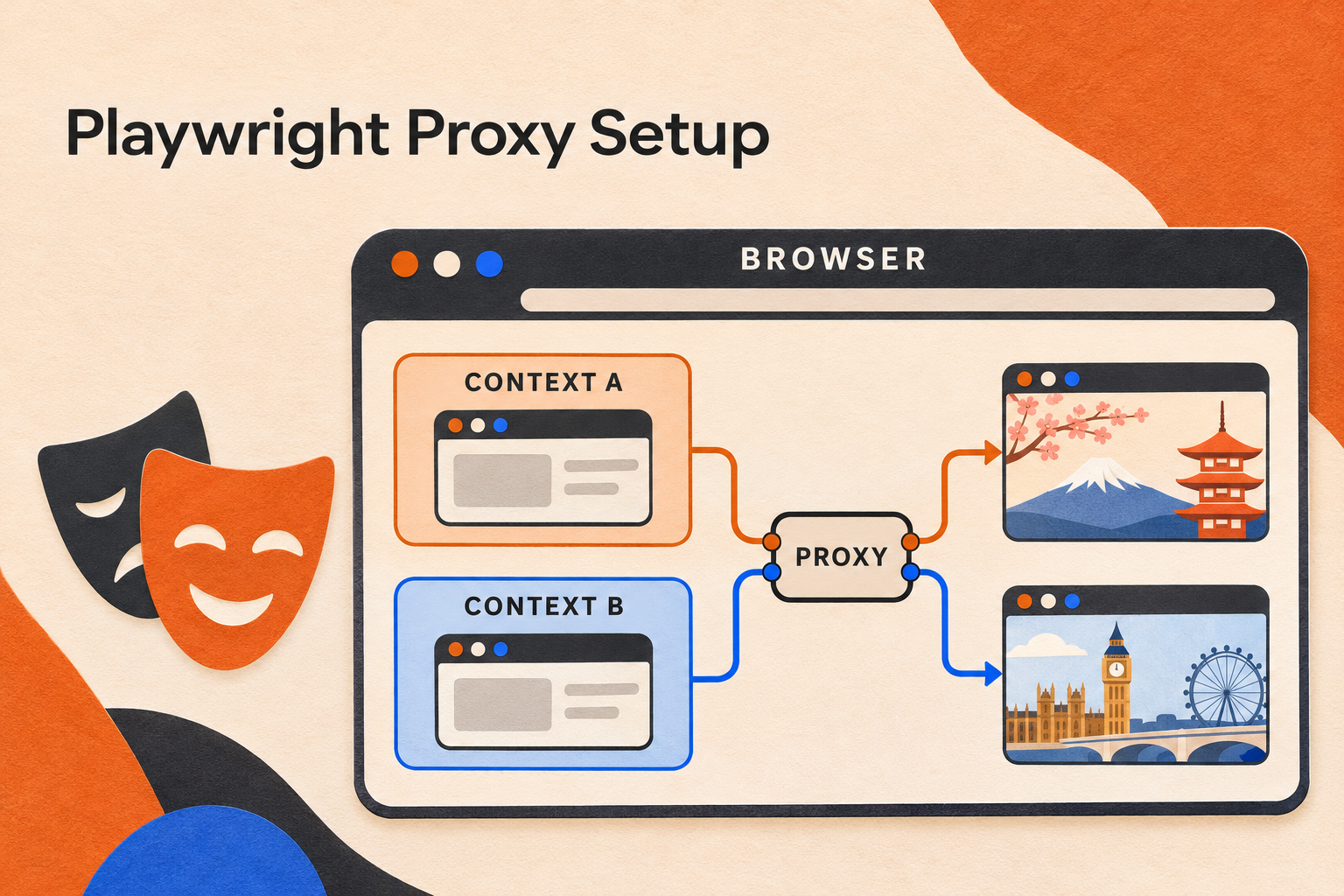
A browser context has its own cookies, storage and pages. A context-level proxy lets you give two contexts different routes without creating two browser processes. A new page inside the same context inherits that context's proxy; it is not a separate proxy setting. Per-context configuration is documented by Playwright's network guide.
Install Playwright and configure credentials
In a Node.js project, install the Playwright library and the Chromium binary. Save the example below as `proxy-check.mjs`. Set `PROXY_SERVER` to a URL such as `http://host:port`, then load `PROXY_USERNAME` and `PROXY_PASSWORD` from a local environment or secret manager. Do not commit them, print them, or paste real credentials into an article or screenshot.
npm install playwright
npx playwright install chromium
The `proxy.username` and `proxy.password` fields authenticate to an HTTP proxy. They are separate from Playwright's `httpCredentials`, which are credentials for the destination website's HTTP authentication. Putting proxy credentials in `httpCredentials` can leave the proxy unauthenticated. Avoid embedding the user and password into `server` when the separate fields are available.
A complete Node.js proxy check
This script launches Chromium, creates one context with a proxy, visits an HTTPS IP-echo service, and optionally visits your own authorized target through the same context. The explicit `try/finally` blocks close the context and browser even when navigation fails. Use `node proxy-check.mjs` after setting the three required environment variables; set `TARGET_URL` only when you have a permitted target to check.
import { chromium } from 'playwright';

const required = ['PROXY_SERVER', 'PROXY_USERNAME', 'PROXY_PASSWORD'];
for (const name of required) {
  if (!process.env[name]) throw new Error(`Set ${name} before running`);
}

const browser = await chromium.launch();
try {
  const context = await browser.newContext({
    proxy: {
      server: process.env.PROXY_SERVER, // e.g. http://host:port
      username: process.env.PROXY_USERNAME,
      password: process.env.PROXY_PASSWORD,
    },
  });
  try {
    const page = await context.newPage();
    const ipResponse = await page.goto('https://api.ipify.org?format=json', {
      waitUntil: 'domcontentloaded', timeout: 30_000,
    });
    if (!ipResponse || !ipResponse.ok()) {
      throw new Error(`IP check returned ${ipResponse?.status() ?? 'no response'}`);
    }
    console.log('Observed exit:', await ipResponse.text());

    if (process.env.TARGET_URL) {
      const response = await page.goto(process.env.TARGET_URL, {
        waitUntil: 'domcontentloaded', timeout: 30_000,
      });
      console.log('Target:', { status: response?.status(), url: page.url() });
      // Add a content assertion specific to your permitted target.
    }
  } finally {
    await context.close();
  }
} finally {
  await browser.close();
}
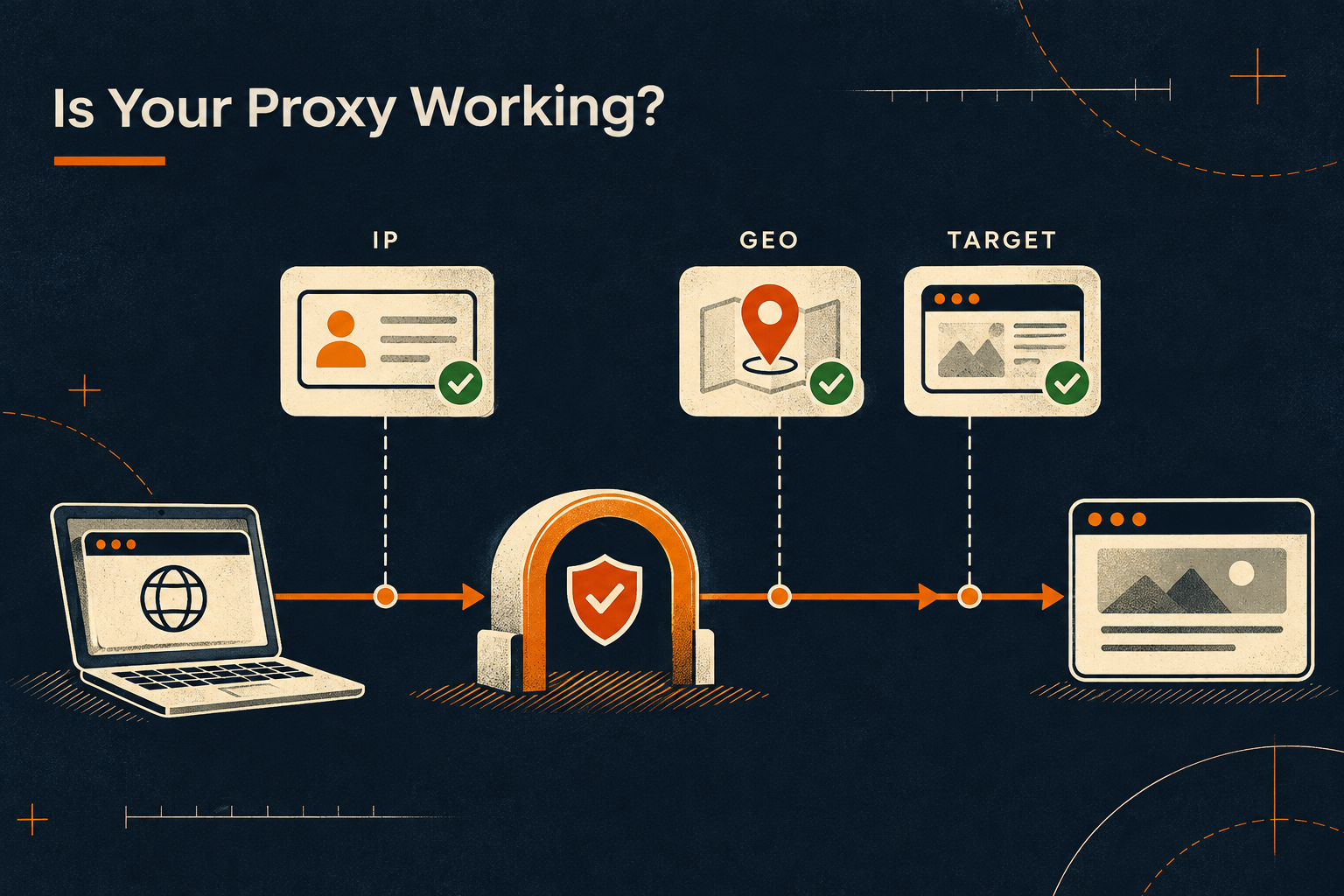
Compare the observed exit with your direct connection and with the location selected in your proxy plan. Then inspect the target response and a field or element that proves the content is useful. A navigation returning HTTP 200 does not prove the page contains the expected data: it may be a consent screen, login page or challenge. Playwright's `page.goto()` can return a response for 4xx/5xx; it throws for failures such as invalid URLs, timeouts and TLS errors, so handle those cases separately.
When to use a separate browser context
Use a new context when two independent workflows need different locations, proxy credentials, cookies or session identities. For example, a US catalog test and a UK catalog test should each have their own context and a provider-supported country selection. Do not assume that creating a new context alone rotates the IP: the exit is chosen by your proxy plan and its session parameters. Conversely, reusing the same context does not guarantee the same residential peer indefinitely. Measure the actual exit across the required session window.
Keep the browser lifecycle under control. Open only as many contexts and pages as your machine, plan and target's permitted request rate can support. Close contexts when a task ends. Browser requests also load images, scripts and fonts, which can increase billable traffic compared with a single HTTP request; see our bandwidth guide.
Playwright Test: set a suite-wide default
If you use `@playwright/test`, set `use.proxy` in the test configuration. The example shows the placement; ensure your environment variables exist before the test runner starts. You can override the proxy by project or by test where your test design requires it. `httpCredentials` remains a separate option for destination-site HTTP authentication.
import { defineConfig } from '@playwright/test';

function requiredEnv(name: string): string {
  const value = process.env[name];
  if (!value) throw new Error(`Set ${name} before running tests`);
  return value;
}

export default defineConfig({
  use: {
    proxy: {
      server: requiredEnv('PROXY_SERVER'),
      username: requiredEnv('PROXY_USERNAME'),
      password: requiredEnv('PROXY_PASSWORD'),
    },
  },
});
Do not confuse browser locale with proxy location
Playwright can emulate `locale`, `timezoneId` and geolocation permissions. Those settings affect what the browser reports to a page; they do not change the network exit IP. To test a region, configure it in the proxy product, verify the observed IP, and check the target's localized response. Keep the browser locale and timezone consistent with the scenario you are testing, but do not treat them as a substitute for a region-specific exit.
Troubleshoot the result at the right layer
| Symptom | What to check next |
|---|---|
| Navigation fails before an HTTP response | Proxy host/port, network reachability, TLS and timeout. Compare the same endpoint with a minimal cURL test. |
| Proxy authentication is rejected | Use `proxy.username` / `proxy.password`, correct plan endpoint and source-IP allowlist. A 407 is a proxy-side problem. |
| IP echo shows the direct IP | Confirm the proxy was set on the browser/context that created the page; check any bypass rule and test outside a service worker cache. |
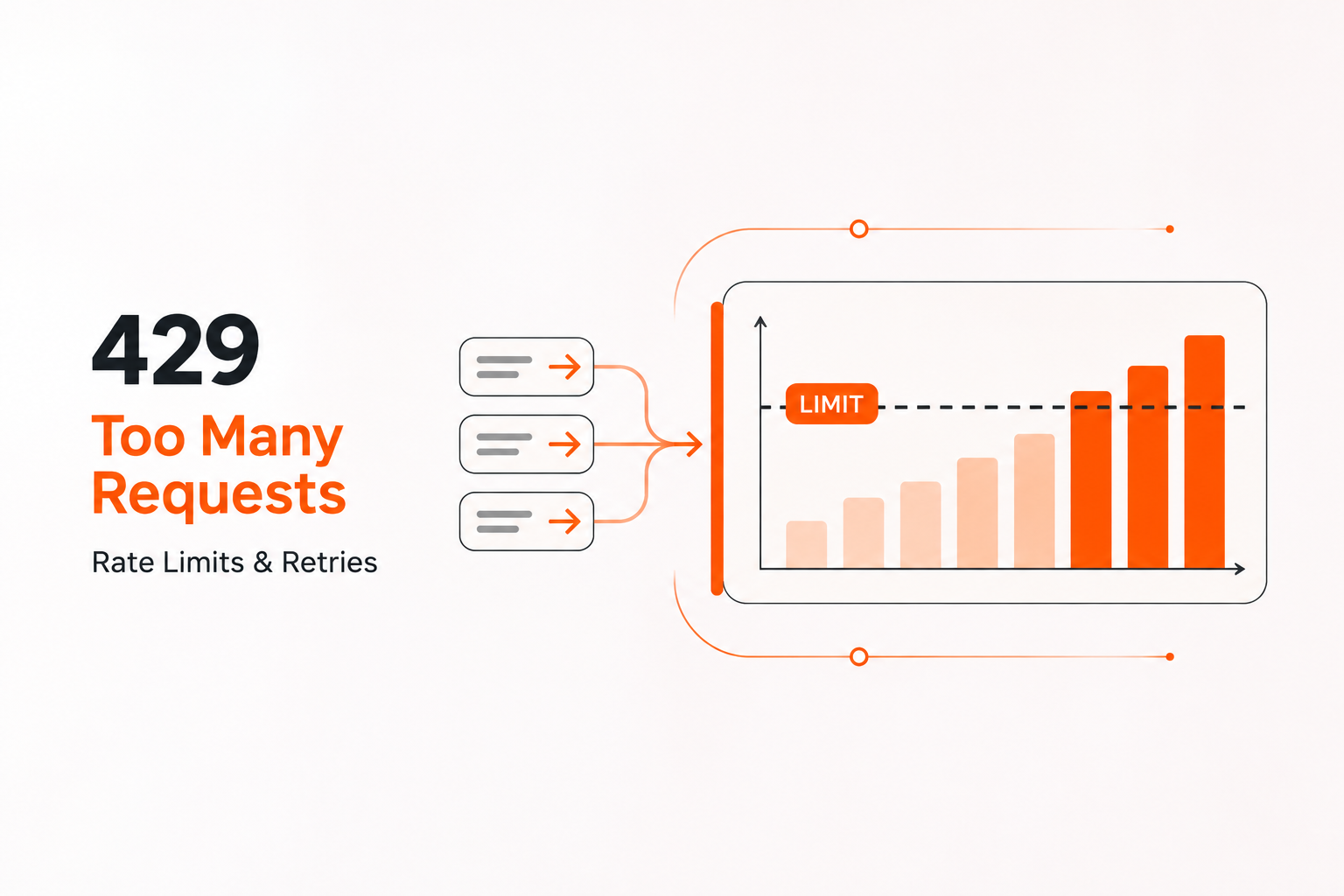
| IP is correct; target returns 403/429 | The route worked. Check target permissions, request rate, response content and your allowed access pattern. |
| Country appears wrong | Check provider country parameter and observed exit IP; compare geolocation sources rather than relying on `locale` alone. |
| Session changes unexpectedly | Check provider session identifier, duration, and rotation policy; keep cookies and multi-step work in the same context. |
When diagnosing a failure, capture the request URL, timestamp, expected region, observed exit, navigation error or HTTP status, and a redacted response sample. Never send passwords or full session tokens in support tickets. Keep the test focused on the exact browser workflow you intend to run.
Apply this to IP Fist
Read the actual host, port and credential format from the IP Fist dashboard and documentation. Its residential example uses country and session parameters in the username. Put the resulting complete username in `proxy.username`; keep `proxy.server` as the endpoint URL. Check the exit first, then run a small permitted browser workflow and measure valid results, session continuity and total billable traffic. Product-specific parameters vary by plan, so do not copy a sample username as a universal setting.
Frequently asked questions
Can I change the proxy for one existing page?
Set the proxy when you launch the browser or create the browser context. To use a different route for a workflow, create a new context with its own proxy settings and a new page in that context.
Does a different Playwright context guarantee a different IP?
No. Context isolation separates browser state and proxy configuration. Actual IP assignment and rotation are controlled by the proxy service and the credentials or session identifiers you use.
Can Playwright use SOCKS5?
Playwright documents SOCKS5 proxy servers, but its proxy username/password fields are described for HTTP proxies. If you require authenticated SOCKS5, confirm support for your exact browser, Playwright version and provider endpoint; the HTTP example above is the verified pattern for this guide.
Sources and verification scope
API behavior follows the official Playwright proxy guide, browser-context API and navigation API. Product parameter examples follow IP Fist documentation. The script has been syntax-checked and reviewed against the API; no live IP Fist credentials or target-specific success benchmark were used. Validate the result with your own authorized target and plan.